First Scan Checklist
Use this page as a pre-flight + first-success checklist. Follow the steps in order. If something is unsafe or unstable, stop immediately and fix it before continuing.
Pre-flight (do not skip)
Safety
- No people in the scan area
- Emergency landing / manual takeover tested
- Prop guards installed (recommended)
- Clear takeoff/landing zone prepared (2 m × 2 m recommended)
Hardware
- Mount is rigid (no rattle)
- Phone is firmly secured (no sliding during braking/acceleration)
- Camera view is unobstructed
- Weight distribution is acceptable (hover test)
Power
- Drone battery charged
- Phone battery charged (or external power secured)
- Tablet/controller battery charged
Network
- All devices are on the same Wi-Fi SSID
- The server IP is reachable from the phone and tablet
- OS firewall allows the DART ports (temporarily disable for testing if needed)
Marker
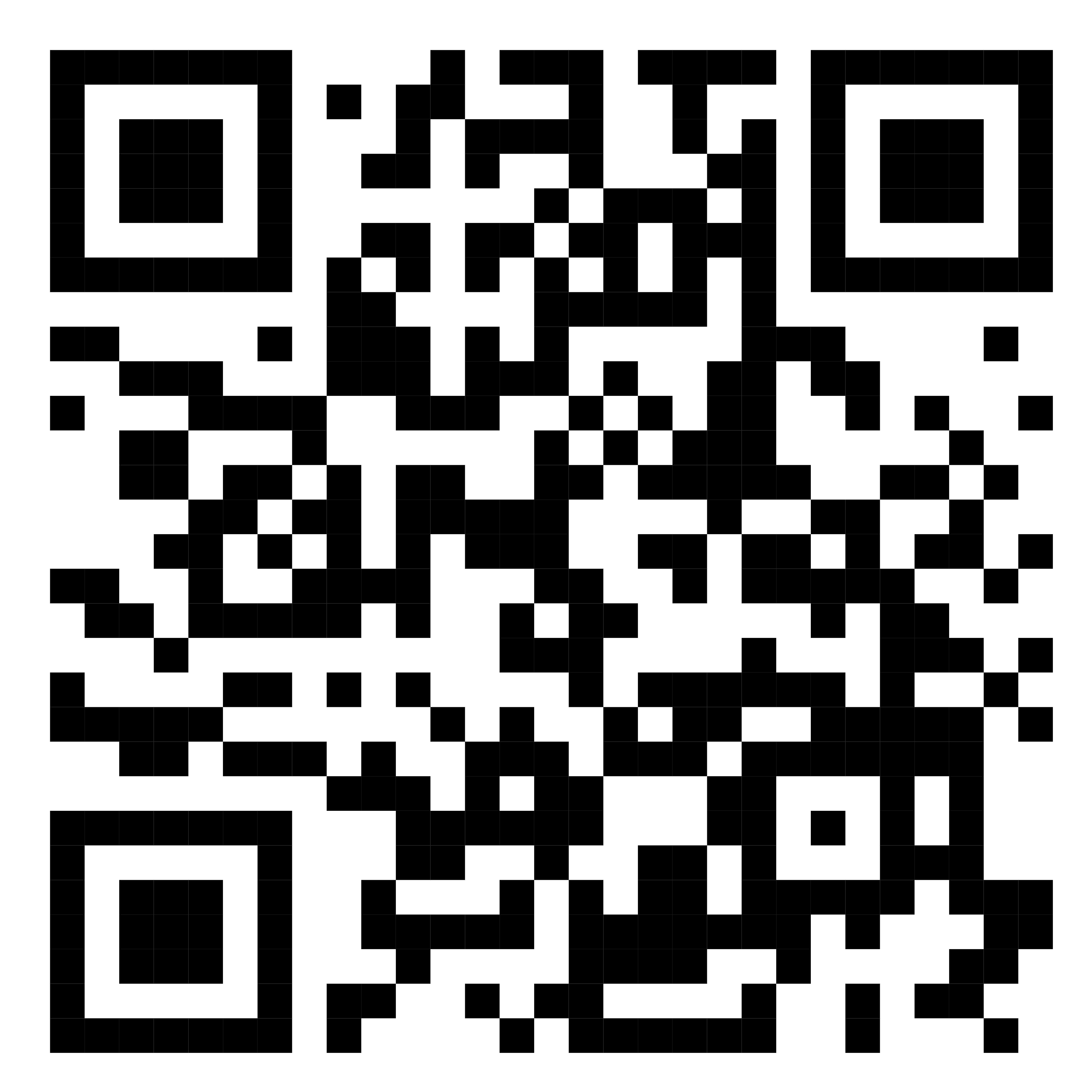
- QR marker placed flat, visible, and well lit
- No glare (avoid glossy paper / reflections)
- Marker detection/initialization succeeds in the phone app
Launch sequence
The goal is to validate the pipeline one step at a time.
Do not move to the next step until Expected is true.
1) Start the server + viewer
Action - Start the server - Open the viewer page in your browser
Expected - Viewer loads without console errors - Server logs show a “ready / listening” state
2) Start the phone stream
Action - Launch the phone app - Start streaming
Expected - Server logs confirm the phone is connected - Viewer begins updating (status and/or trajectory)
3) Connect the tablet controller
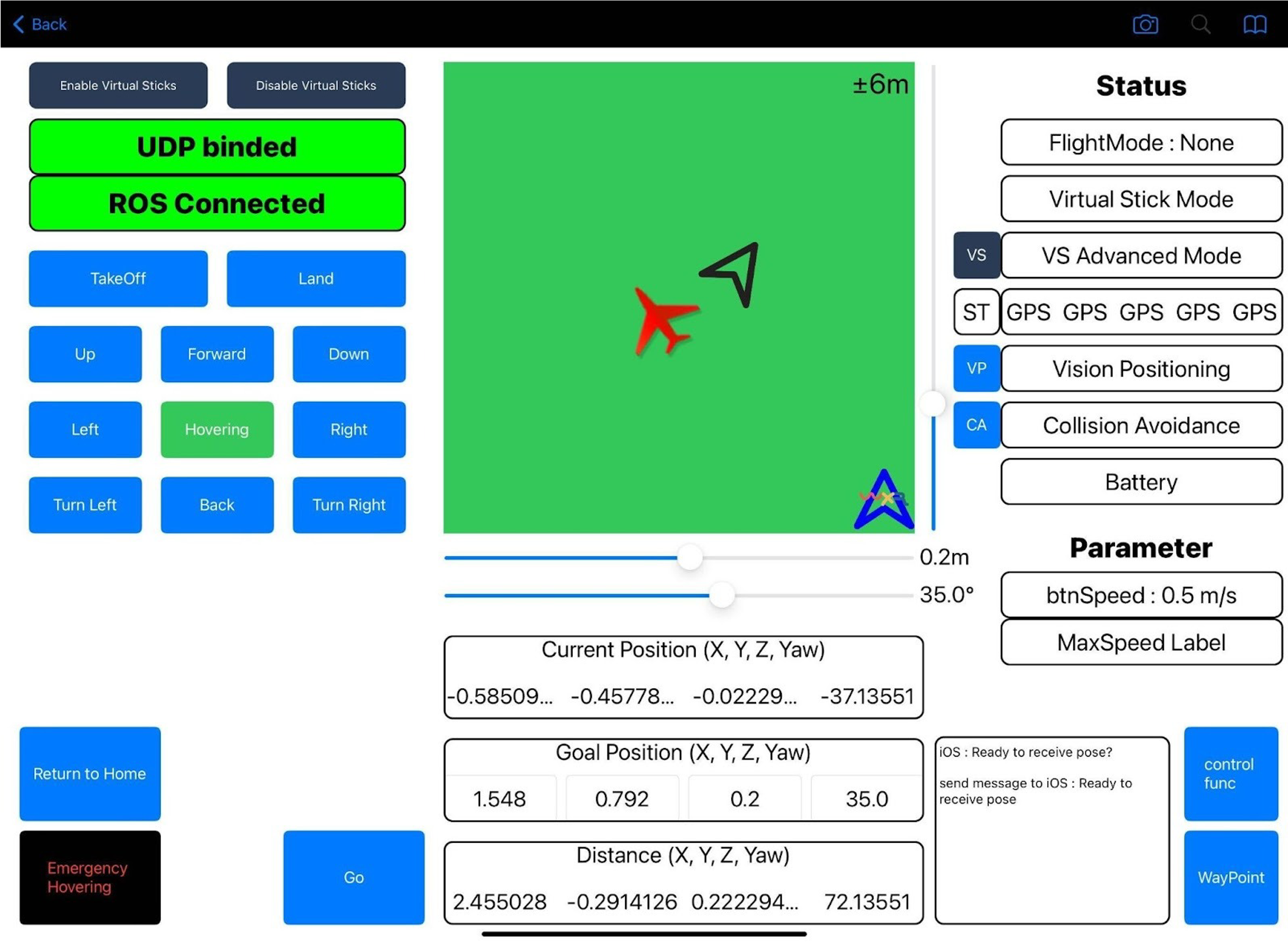
Action - Launch the tablet controller UI and connect to the system
Expected - The UI shows a connected/healthy status - You can switch modes or confirm the system state
4) Take off and hover (stability check)
Action - Take off - Hover for 10–15 seconds
Expected - Stable hover (no severe wobble) - No mount flexing or phone movement - Phone tracking remains stable (no repeated resets)
5) Start an autonomous scan session
Action - Start an autonomous scan session from the controller UI
Expected - Viewer trajectory continues to update as the drone moves - Reconstruction/coverage (if shown) grows over time
6) Monitor the scan and intervene if needed
Action - Monitor the viewer and controller UI continuously
Stop immediately if - Tracking is lost / pose jumps significantly - You see obvious drift - The drone approaches obstacles or enters an unsafe state
7) End the mission and confirm a session was saved
Action - End the scan mission
Expected - You see a “session saved / archived” message or log - A new session folder/bundle is created on the server
8) Replay the session in the viewer
Action - Load the saved session in the viewer and replay
Expected - Trajectory playback works - Data and video appear synchronized (if available)
First success criteria
- The viewer shows live updates during flight
- A session artifact is saved when the mission ends
- The session replays correctly in the viewer
Quick triage (when something fails)
Viewer loads, but no data appears
- Confirm all devices are on the same SSID
- Confirm the server IP/port in phone/tablet settings
- Temporarily disable OS firewall to test
Marker initialization fails
- Improve lighting and remove glare
- Reprint the marker larger (keep 100% scale; do not “fit to page”)
- Hold the camera closer and more perpendicular during initialization
Autonomous scan becomes unstable
- Re-check payload weight distribution
- Increase mount rigidity (remove play/vibration)
- Start in a simpler space (fewer obstacles) for your first run
Next steps
- Continue to: Quickstart (Full System)
- Learn operations: Running a Scan · Monitoring & Replay
- If needed: Troubleshooting