Quickstart (Full System)
This guide is optimized for first success.
DART has multiple components, so the recommended order is:
1) Bring up the server + viewer 2) Connect the phone and confirm streaming 3) Connect the tablet controller 4) Start a small scan, save a session, and replay it
If you haven’t checked your setup yet, start with: Requirements
Before you start
Make sure the following are ready:
-
Hardware is built and stable
→ Hardware Setup -
All devices are on the same network (same Wi-Fi SSID)
→ Requirements -
QR marker is printed and placed in the scan area
→ Requirements → Marker
Step 1 — Start the server + viewer
Action - Start the DART server on your compute node (PC/mini-PC) - Open the viewer in a browser
Expected - The viewer page loads without console errors - The server shows a “ready / listening” state - The viewer shows an idle UI (waiting for data)
Where to configure - Viewer URL / ports: Network & Ports
Step 2 — Start the phone stream
Action - Launch the phone app and start streaming to the server
Expected - The server confirms the phone is connected - The viewer begins updating (status and/or trajectory)
Tips
- If the viewer loads but nothing updates, this is usually a network/port issue
→ Troubleshooting: Network
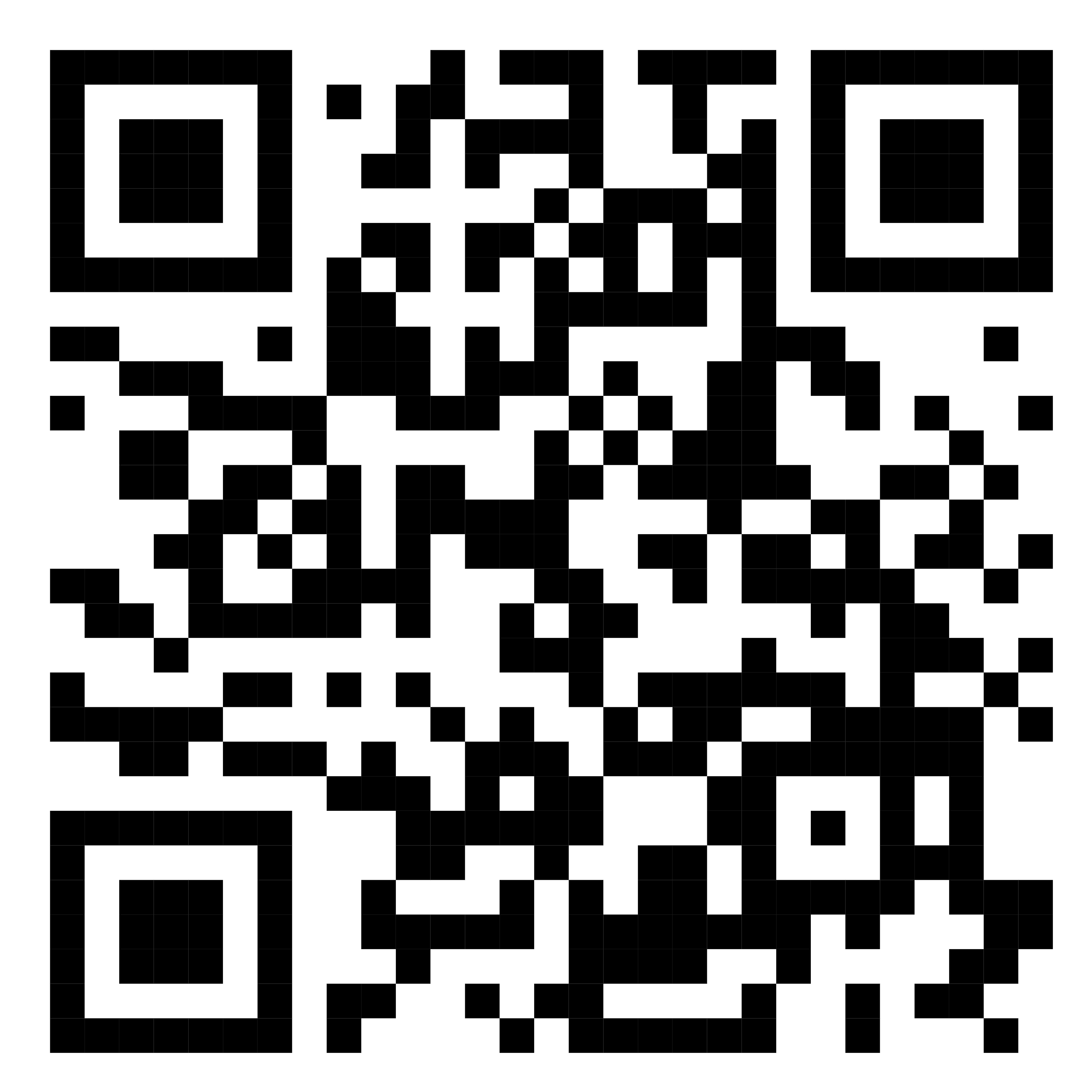
Step 3 — Initialize with the QR marker
Action - Ensure the QR marker is visible and well lit - Initialize the coordinate frame in the phone app
Expected - Marker detection/initialization succeeds - Pose updates remain stable (no repeated resets)
Step 4 — Connect the tablet controller
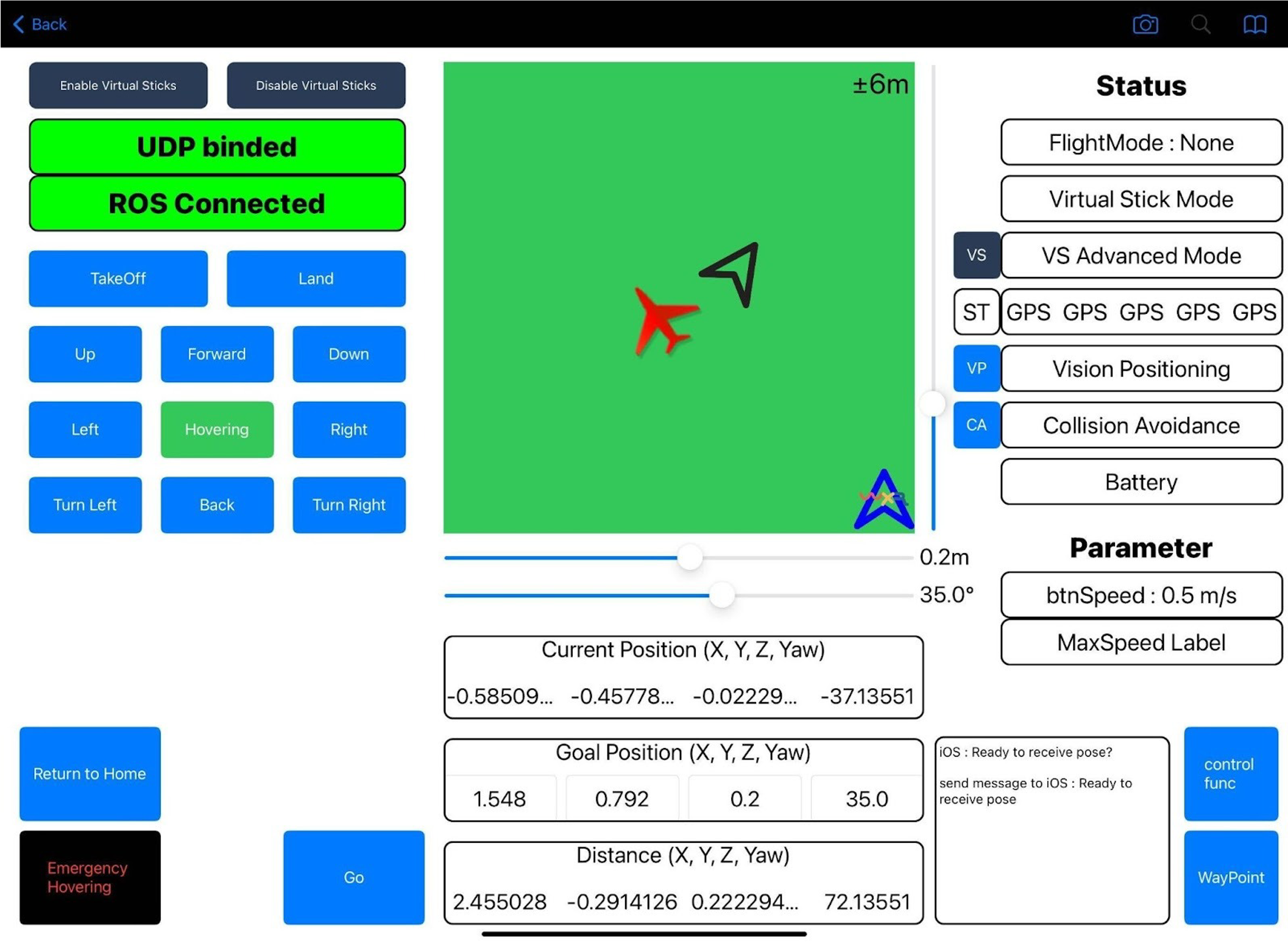
Action - Launch the tablet controller UI and connect it to the system
Expected - The UI shows a connected/healthy state - You can confirm modes and system status
Step 5 — Start a small autonomous scan
Action - Take off and hover briefly (stability check) - Start a small/safe scan mission
Expected - Viewer trajectory continues to update as the drone moves - You can intervene safely if tracking becomes unstable
Guidance - Use a simple space first (fewer obstacles) - Stop immediately if tracking is lost or drift becomes obvious
→ First Scan Checklist
→ Running a Scan
Step 6 — End mission, save a session, and replay
Action - End the mission - Confirm a new session artifact was saved - Replay the session in the viewer
Expected - A session folder/bundle is created - Replay works and shows synchronized outputs (if available)
→ Sessions & Logs
→ Monitoring & Replay
If something fails
Start here: