Requirements
This page lists the baseline setup the docs assume, plus the minimum requirements to get your first scan running.
If you are building DART for the first time, follow this page “as-is” before customizing.
Known-good baseline (reference build)
Reference build
- Drone: DJI Phantom 4 Pro V2.0
- Phone: iPhone 15 Pro
- Mount: simple 3D-printed adapter
- Control UI: tablet interface (mission control)
You can use different hardware, but a known-good baseline reduces guesswork.
Hardware (minimum)
UAV
Minimum: - A UAV that supports programmatic control (SDK / waypoint missions) - Enough payload for phone + mount (plan for ~200–250 g total)
Recommended: - Prop guards (indoor) - Stable hover + good braking (reduces blur)
Phone
Minimum: - AR-capable phone with stable visual-inertial tracking (VIO)
Recommended: - Depth-capable models (ARKit depth preferred)
Compute node (server)
Minimum: - A modern laptop/desktop or mini-PC - Stable network connection (wired LAN recommended)
Recommended: - Use a dedicated machine for mapping/planning (less jitter)
3D printer
Minimum: - FDM printer with decent dimensional accuracy
Recommended: - PETG or ABS for mounts (PLA may deform)
Network (do this first)
Most “it doesn’t connect” issues are network issues.
- Put all devices on the same Wi-Fi SSID
- Avoid captive portals (public Wi-Fi)
- Prefer a dedicated router/AP for demos
- If possible, connect the server PC by wired LAN
Workspace prep (indoor scan area)
- Clear small obstacles and reflective clutter
- Ensure adequate lighting
- Avoid large blank white walls (low texture is harder)
- Mark a safe takeoff/landing zone
Fiducial marker
DART uses a QR-code fiducial marker in the scan area to initialize the coordinate frame.
Download - Download the marker image
Print tips - Print on matte paper - Print at 100% scale (do not “fit to page”) - Start with a larger print if detection is unstable (e.g., reprint bigger)
Placement tips - Place flat and well-lit - Avoid glare and extreme viewing angles
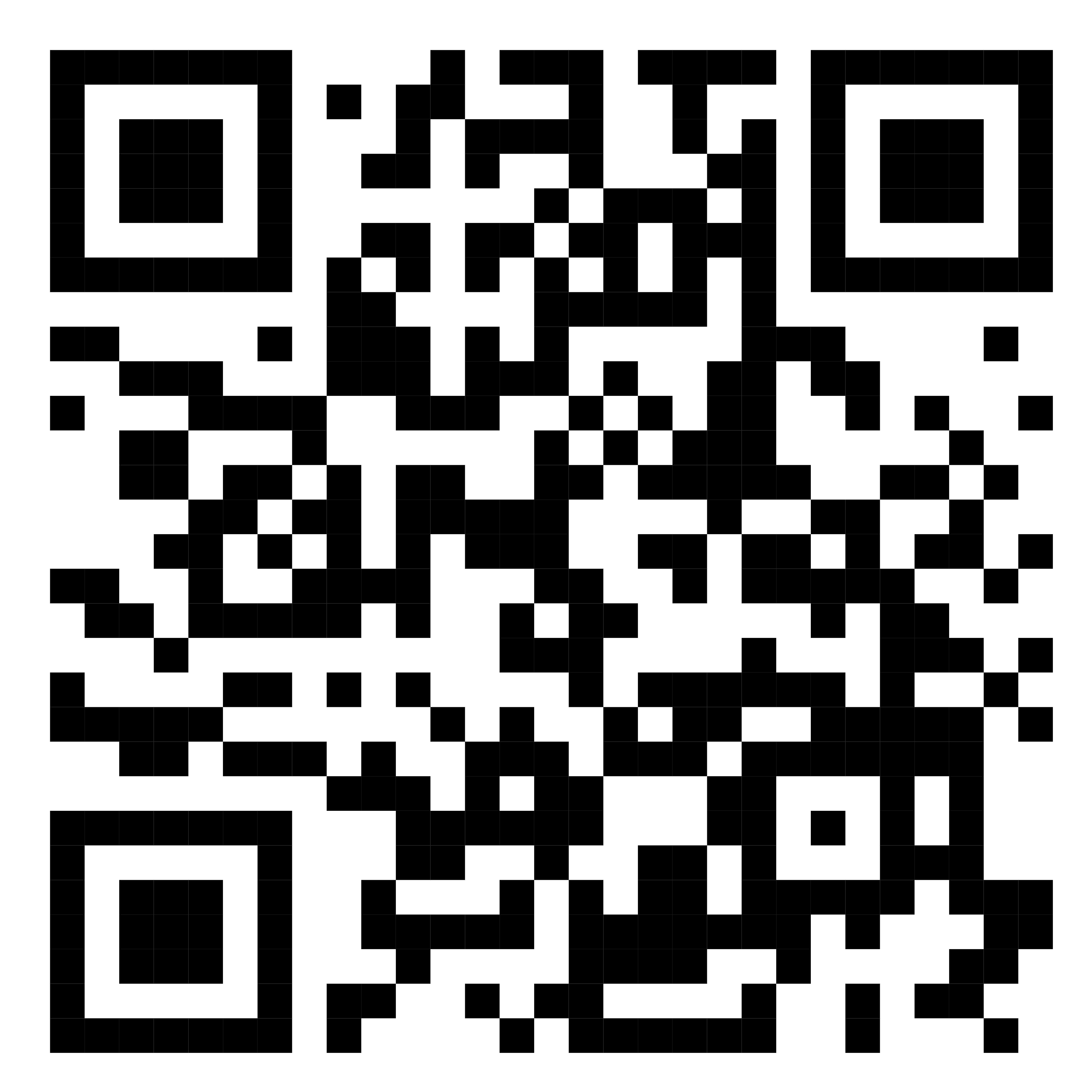
Optional but strongly recommended: add a photo of the marker placed in a real scan area.
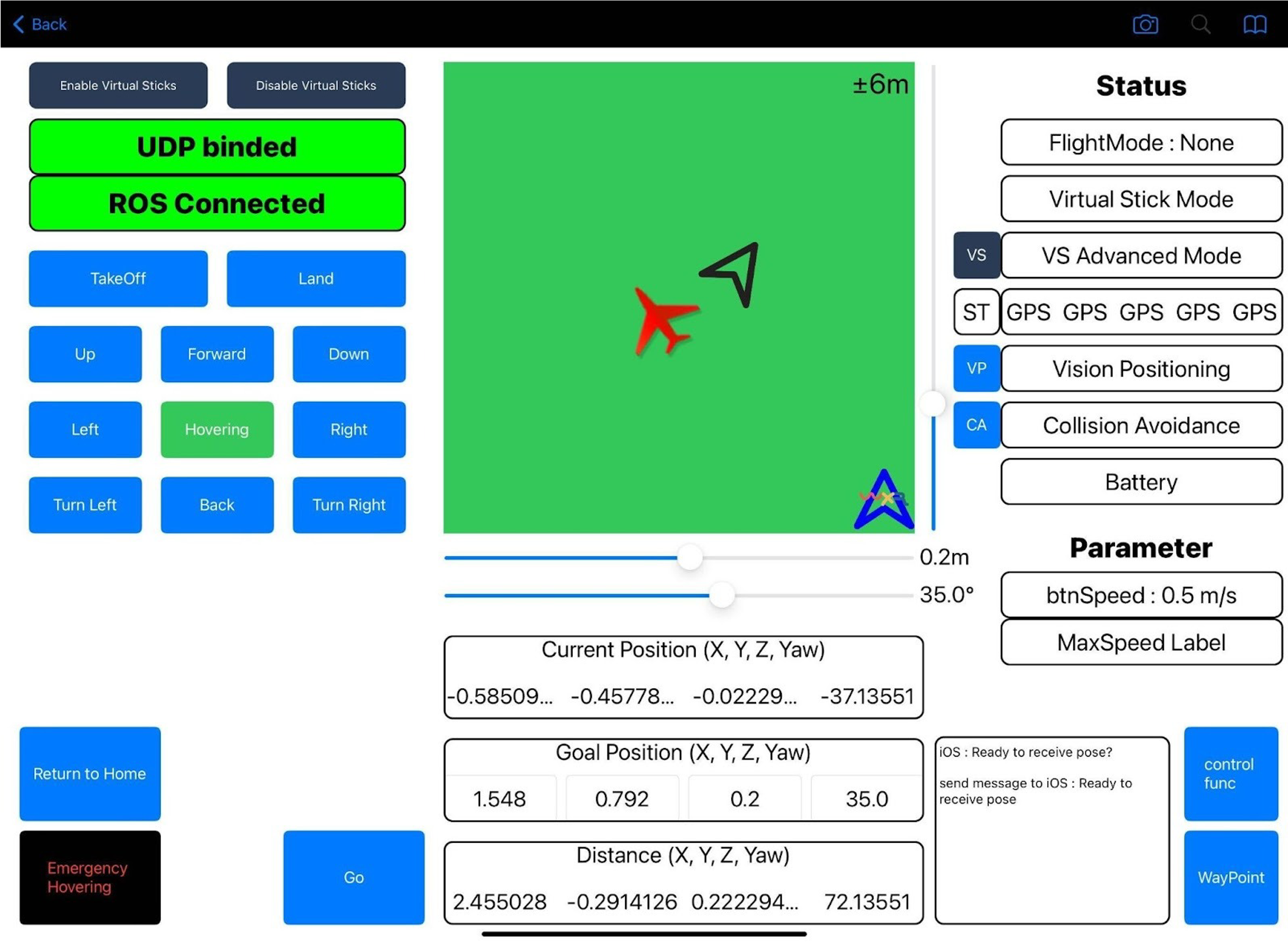
Tablet control UI
A tablet-based control UI helps you monitor scan status and switch modes safely.
Safety checklist (minimum)
- No people in the flight area
- Emergency landing / manual takeover tested
- Props/guards installed and verified
- You have a spotter (recommended)
Next steps
- Continue to: Quickstart (Full System)
- Then follow: First Scan Checklist